Computer Exam Recommendations
Faculties and schools may have standard practices for computer exams, so instructors should firstly consult with their Associate Deans or Heads.
There are various methods and technologies for computer assessments. The most common approach at UBC is using a Canvas quiz that students can access on their devices. The Canvas quiz can be supplemented with various invigilation techniques to improve academic integrity. The student experience is determined by the quiz technology, the invigilation method, and the mode of delivery (in-person, on campus, or online remote).
Important Note for Using Respondus Lockdown Browser
To ensure security when using Respondus LockDown Browser for an on-campus, online exam, instructors should enable “Lock students into the browser until exam is completed.” This option appears in LockDown Browser → choose your quiz → Settings → Advanced Settings (visible only after selecting “Require LockDown Browser for this exam.“)
This setting ensures students’ attempts will be ended if they attempt to leave Respondus Lockdown Browser, and is crucial to ensure security in your exam.
If you don’t see LockDown Browser in your course navigation, it may be hidden. To enable it:
- Go to Settings in your Canvas course.
- Select the Navigation tab.
- Drag LockDown Browser into the active menu area at the top.
- Click Save at the bottom of the page.
Advanced Security Options (Not Recommended for Large Exam Settings)
Before The Exam
- Go to the “LockDown Browser” section in Canvas
- Click on the arrow next to the quiz in question
- Enable Respondus by selecting “Require LockDown Browser for this exam”
- Under “Password Settings” set a an exam password (do not share it in Canvas) by typing it into the box next to “Access code for this exam (optional)”
- To ensure Respondus does not allow students to exit the browser, click the box next to “Lock student into the browser until exam is completed”
- We recommend using another password that will allow students to close RLB when they finish “Password to close browser and exit exam early (optional)” but this password again should not be posted online and should be given out by the invigilator when the student has submitted and is leaving the room.
- Finally, because the steps that invigilators will take during the exam will take time, we recommend using a Time Limit in your Canvas quiz while also providing a large buffer in the availability times (e.g. 30 minutes or more) using the “Available Until” section in your Canvas quiz settings.
During The Exam
- After verifying student photo ID, the invigilator should confirm the student’s device is running Respondus LockDown Browser.
- Confirm the full-screen LockDown Browser is present (no taskbar or other apps)
- Confirm the Canvas quiz page is visible.
- Confirm the Respondus access code prompt is present.
- Only once all three of these aspects of been confirmed should the invigilator provide the access code to the student.
- Monitor the student entering the exam access code to ensure it takes them to the Canvas Quiz with the correct question(s) for the exam. If a student is using a fake Respondus LockDown Browser and they have not been given the exam questions beforehand, there will be no way they can fake this page.
- Actively monitor during the exam to ensure no students are using secondary devices to share the access code with an external person.
- At the end of the exam, have students sign out and if an early exit password has been setup, only share it then.
| Quiz Technology | Invigilation Method | Risks |
| Canvas quiz (as a take-home exam) | Respondus Lockdown Browser | MEDIUM RISK: Lockdown Browser prevents accessing resources on the device. In-person monitoring is still needed to handle student communication and access to other devices and resources. |
| Canvas quiz | In-person monitoring | MEDIUM RISK: While Respondus is intended to be used in online, in-person exams, it still requires a human proctor to enforce behavioral rules in the exam setting, like not leaving early or using a second device. |
| Canvas quiz | In-person monitoring | LOW RISK: Using a computer lab increases academic integrity by reducing access to other resources and guaranteeing a consistent computer environment. Instructor should verify the resources students have access to and may need to work with IT to limit access. |
| Quiz Technology | Invigilation Method | Risks |
| Canvas quiz (as a take-home exam) | None | HIGH RISK: No verification student did the work and no limits on accessing other resources. UBCO Senate Policy discourages the use of take-home exams. |
| Canvas quiz | Respondus Lockdown Browser | HIGH RISK: Not better than no invigilation as students have access to other devices and other people. No improvement for academic integrity, and there are increased technical challenges. |
| Canvas quiz | Zoom | MEDIUM RISK: Zoom invigilation allows for student verification and monitoring. Students may still access resources on other devices not in field of view of Zoom. Instructors should consult best Zoom invigilation practices and Zoom usage instructions at UBC. Zoom invigilation is NOT RECOMMENDED with Lockdown Browser as students will need to run Zoom on another device. |
Course Planning
- If the computer exam is in person, inform your administrator about the need for scheduling your course in a room with electrical power.
- The syllabus should include dates of all computer exams and quizzes, the technology used (Canvas, Zoom, Lockdown Browser, etc.), and how students will be accommodated if there are challenges (e.g., a student does not have a laptop, a student is writing at the DRC, etc.).
- Consider creating computer assessments that can be completed in a computer lab outside of lecture time. Lab-based computer assessments resolve many technical and integrity challenges.
Student Preparation and Communication
- Clearly communicate expectations to students on how the computer exams will function.
- Provide students with practice or low-risk assessments to familiarize them with the technology.
- Be prepared to accommodate student issues related to technology access or failures.
There are various methods and technologies for computer assessments. The most common approach at UBC is using a Canvas quiz that students can access on their devices. The Canvas quiz can be supplemented with various invigilation techniques to improve academic integrity. The student experience is determined by the quiz technology, the invigilation method, and the mode of delivery (in-person, on campus, or online remote).
Online Remote Computer Exam Options
| Quiz Technology | Invigilation Method | Risks |
| Canvas quiz (as a take-home exam) | None | HIGH RISK: No verification student did the work and no limits on accessing other resources. UBCO Senate Policy discourages the use of take-home exams. |
| Canvas quiz | Respondus Lockdown Browser | HIGH RISK: Not better than no invigilation as students have access to other devices and other people. No improvement for academic integrity, and there are increased technical challenges. |
| Canvas quiz | Zoom | MEDIUM RISK: Zoom invigilation allows for student verification and monitoring. Students may still access resources on other devices not in field of view of Zoom. Instructors should consult best Zoom invigilation practices and Zoom usage instructions at UBC. Zoom invigilation is NOT RECOMMENDED with Lockdown Browser as students will need to run Zoom on another device. |
On Campus Computer Exam Options
| Quiz Technology | Invigilation Method | Risks |
| Canvas quiz (as a take-home exam) | Respondus Lockdown Browser | MEDIUM RISK: Lockdown Browser prevents accessing resources on the device. In-person monitoring is still needed to handle student communication and access to other devices and resources. |
| Canvas quiz | In-person monitoring | MEDIUM RISK: While Respondus is intended to be used in online, in-person exams, it still requires a human proctor to enforce behavioral rules in the exam setting, like not leaving early or using a second device. |
| Canvas quiz | In-person monitoring | LOW RISK: Using a computer lab increases academic integrity by reducing access to other resources and guaranteeing a consistent computer environment. Instructor should verify the resources students have access to and may need to work with IT to limit access. |
Best Practices for On Campus Computer Exams
- Supervise the room actively. TAs circulate, watching for anyone closing laptops, packing up early, or appearing to exit mid-attempt.
- Require in-room submission of the exam before a student is permitted to leave the room. This can be accomplished by ensuring the exam is submitted on the Moderate screen, or by viewing the “Quiz Submitted” confirmation on the student’s screen.
- Match the quiz time limit to the scheduled exam duration, and set the Available From time to the exact exam start. Add a short buffer (e.g. at least 10 minutes) to the Available Until time. This buffer preserves the full allotted time for students who experience startup delays, while still keeping the exam contained within the scheduled window.
- Do not rely on IP or location restrictions. Campus Wi-Fi subnets span large areas and cannot confine students to one room. Instead consider doing a check-in list or doing an ID check at the beginning of the exam to ensure no students are attempting the exam from outside the classroom.
- Allow all the questions to be on a single page to decrease loading errors and WiFi issues. Limit use of large graphics that take time to transmit over WiFi.
- Set an access code if the exam is an in-person computer exam. This step will require that students be present to gain access.
- Enable the use of iPads in the settings.
- Test the format in class at least two weeks before midterm and final exams.
- Advise students to not to leave the exam until they have confirmed their exam is submitted.
- Allow students to log into the exam multiple times (multiple attempts) should they need to disconnect and reconnect.
- Computer exams have higher academic integrity risks. Handling potential integrity violations is problematic and challenging. Instructors should consult with their Associate Deans or Heads to understand best practices and how academic integrity cases are handled.
A complete list of software availability by computer lab, including Respondus Lockdown Browser, is available via Okanagan IT.
- At least 48 hours (preferably one week) prior to an in-person computer exam, through the CTL Helpdesk provide the exam date, time, location, and number of students. CTL will coordinate with IT services to share this information.
- In practice, CTL and IT services are not able to respond in real-time to resolve any technology related issue that affects the entire class (e.g., Canvas, WiFi outage) or individual students (e.g. laptop failure, unable to access Canvas).
- Instructors must have contingency plans (paper exam, backup laptops) for these situations. Adding time to an exam to handle technology issues is possible but may be limited based on room time-slot availability.
UBC Secure Wi-Fi Bandwidth and Connectivity:
- UBC IT Okanagan (UBCO IT) cannot guarantee Wi-Fi network bandwidth and connectivity.
-
- The UBC Secure Wi-Fi service is configured to allow multiple connections.
-
- Available bandwidth is divided among all devices/connections.
- UBCO IT is unable to limit access to ‘UBC Secure’ to only those within the exam environment.
- There are many people on campus that have multiple devices accessing UBC Secure.
Canvas and Internet Disruption:
- Students are notified within Canvas that internet connection has been lost.
- Any answers submitted after internet connection has been lost will not be retained; students should refrain from continuing the exam until internet connection has been regained.
- Without internet connection, Canvas will not allow students to move to the next page or the next page will fail to load.
- The exam timer will continue even though the student has lost internet connection.
Respondus Lockdown Browser (RLB) and Internet Disruption:
- RLB recommends using a device connected directly to the internet via an ethernet cable.
- If Wi-Fi is going to be used, RLB recommends avoiding networks with heavy traffic (i.e., open Wi-Fi networks such as UBC Secure).
- RLB will attempt to re-establish a connection every 5 seconds.
- If the internet connection is lost for an extended period of time:
-
- RLB will lock up – the student will not be able to save answers, move on to other questions, or submit or exit the exam.
-
- The student must exit out of RLB, re-establish their internet connection (if necessary), and re-open the exam in RLB.
-
- The student may need to turn off and restart their computer if their device has outdated and/or multiple Java installations.
Other Risks:
- Student devices may not be in an appropriate working, exam readiness state to successfully complete the exam.
In advance of the exam (e.g., two weeks ahead), faculty should advise students to:
- Bring a fully charged laptop for an in-person exam in the assigned classroom
- Ensure they have access to a laptop
-
- While the UBC Okanagan Library has technology loans available, including laptops and adapters, these do not contain the Respondus Lockdown Browser and it cannot be installed by students using the device. Please note, there are also a limited number of laptops (30) that are available first-come first-serve, and students may not have access to a laptop at the time of the class.
- Ensure that they can connect to UBC Secure WiFi networks
- Have the most recent version of Respondus Lockdown Browser, if applicable
-
- UBC Respondus LockDown Browser Student Guide | Learning Technology Hub
-
- Note: The software routinely receives updates that may not be pushed to the devices where Respondus Lockdown Browser is installed. Ensure all students are using the most up-to-date version of the software.
- Attempt a practice exam in Canvas, with Lockdown browser if using for an exam
- Review Prep-Tech-Students.pdf (ubc.ca) to assess and resolve device issues in advance
- Reach out to Student Tech Support if they have technology-related questions
On the day of the exam, faculty should advise students to:
- Disconnect other devices they have from UBC Secure
- Monitor the “Quiz saved at” time in Canvas to ensure exam is being saved
Faculty may also want to consider:
- Leveraging a UBC Okanagan computer lab
- Leveraging a UBC Okanagan classroom configured with power to alleviate students encountering battery related issues during the exam
| CODE | BUILDING NAME | ROOM # | CAPACITY | POWER |
| ART | Arts Building | 114 | 100 | ALL |
| ART | Arts Building | 214 | 93 | ALL |
| ART | Arts Building | 366 | 200 | LIMITED |
| ART | Arts Building | 376 | 102 | LIMITED |
| ART | Arts Building | 386 | 95 | LIMITED |
| ASC | Arts and Science Centre | 130 | 114 | SOME |
| ASC | Arts and Science Centre | 140 | 302 | SOME |
| COM | The Commons | 201 | 400 | ALL |
| EME | Engineering, Management and Education | 50 | 192 | ALL |
| EME | Engineering, Management and Education | 1101 | 80 | ALL |
| EME | Engineering, Management and Education | 1121 | 72 | ALL |
| EME | Engineering, Management and Education | 1151 | 49 | ALL |
| EME | Engineering, Management and Education | 1153 | 48 | ALL |
| LIB | Library | 312 | 116 | ALL |
| LIB | Library | 317 | 126 | ALL |
| RHS | Reichwald Health Sciences Centre | 257 | 75 | ALL |
| RHS | Reichwald Health Sciences Centre | 260 | 125 | ALL |
Computer exams can significantly improve the speed and accuracy of some assessments when integrated with a planned assessment methodology. The risks and issues with computer exams can be mitigated by designing assessments that incorporate randomizing student seating, questions, question-order as well as combining auto and manual grading for more authentic assessments. The technology issues primarily relate to having students complete exams on their own devices (Bring Your Own Device BYOD). CTL supports the development of new pedagogical approaches and technical deployments to improve these exams. As an example, UBCV has developed a computerized testing lab that allows students to write computer exams on devices that are secured, Internet-stable, and can be customized so students can only access certain internet resources as well as physical resources (calculators etc.). This environment satisfies the key requirements of student identity verification and controlled access to resources that is only partially possible with in class computer exams. There are also some solutions that could dramatically help faculty members run assessments in general (both traditional and computer-based). Below are some suggestions that will require coordination from various levels of the university to cooperate to enable:
- Numbering desks in classrooms to permit instructors to assign students randomized seats to promote academic integrity.
- Implement student ID card readers for attendance, and to check-in and check-out students from exams
- Crowd-sourced reports of classrooms where instructors have attempted computer exams as well as any observations of WiFi stability, power availability, invigilation notes, and other logistical issues
- Expanding the Library laptop loan program to allow instructors to borrow laptop carts for tests, midterms, and final exams (only for use of laptops, not the use of Respondus Lockdown Browser)
- Invest in free and open-source software solutions to help facilitate the creation and administration of computer exams including scheduling, accommodations, extended times, proctoring, and invigilation
CTL is interested in supporting and working with instructors and administration on how to improve the support for computer exams on campus. For more information, please contact CTL at ctl.ubco@ubc.ca .
Suggestions on Simplifying the Process for Instructors
- CTL could create and post a recorded workshop on the computer-mediated exam that
-
- Covers the process and highlights the key points for the instructors and students.
-
- Includes a section for effectively communicating with students before and during the exam
- CTL could provide a guideline on how to train TAs to invigilate computer-mediated exam
-
- Including a section on how TAs should communicate with students before and during the exam. TAs familiarize themselves with common IT issues during the exam and best practices on contingency plans (e.g., bring a print version of exams).
-
- Referencing the Sauder file named “Tier 1 In-person Exam Troubleshooting Guide.docx” has a comprehensive summary of potential IT issues such as:
- Wi-Fi dropping (find a way to preserve the record, such as taking photos of the exam answers using the instructor’s phone)
- Respondus LockDown Browser issues (exit the browser and grant a second attempt on the Canvas exam monitor section)
- Laptop issues (solution: backup laptop)
- Exam simulation (half of TAs act as students, half of TAs act as invigilators)
- Other Invigilation tips (e.g., printed sign-in and sign-out forms)
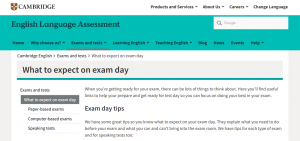
- To eliminate the repetitive work from each instructor, a general website with exam-related information can be created. Here is a sample website from the Cambridge English department: Computer-based exams.
Click here to view a pdf format on recommendations for computer exams.